DASHCAM 443

User manual

Discover your VM443

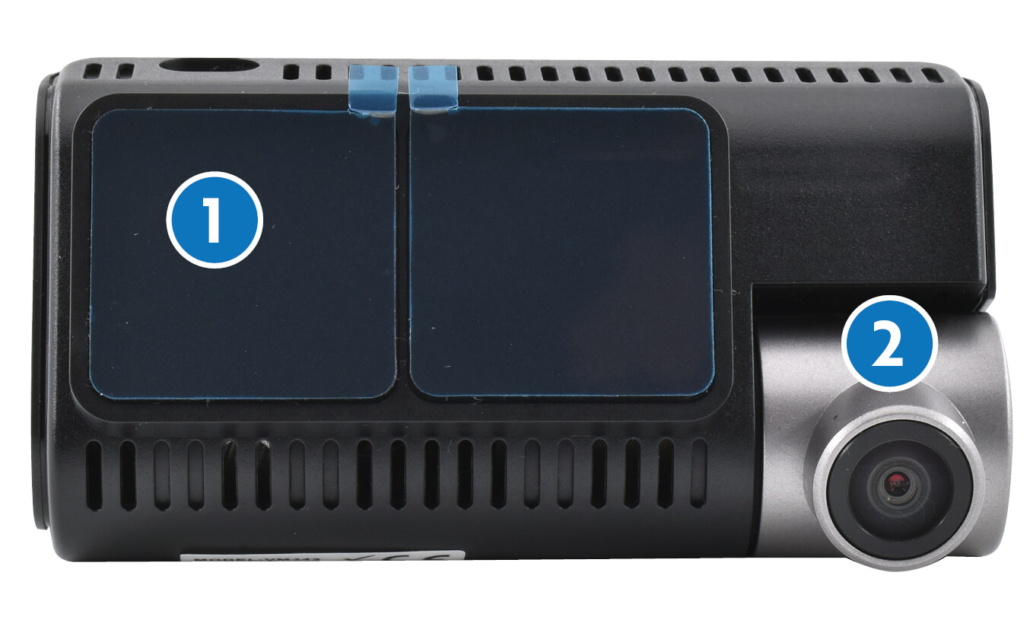
1. DASHCAM mount with quick release
2. Adjustable camera lens
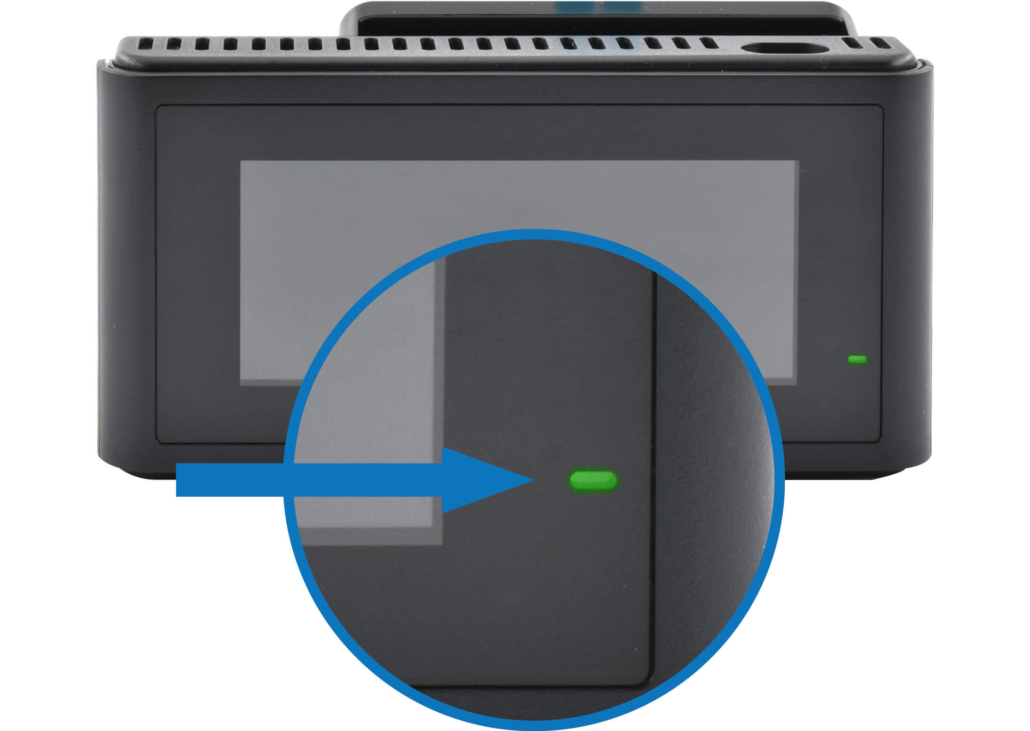
3. Status indicator LED
4. LCD display
5. Input for VM485 rear-view camera
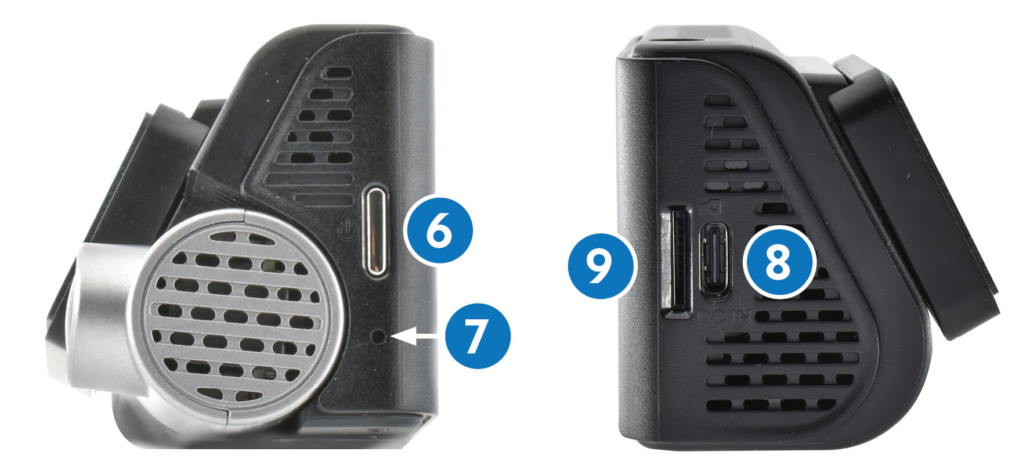
6. ON/OFF button
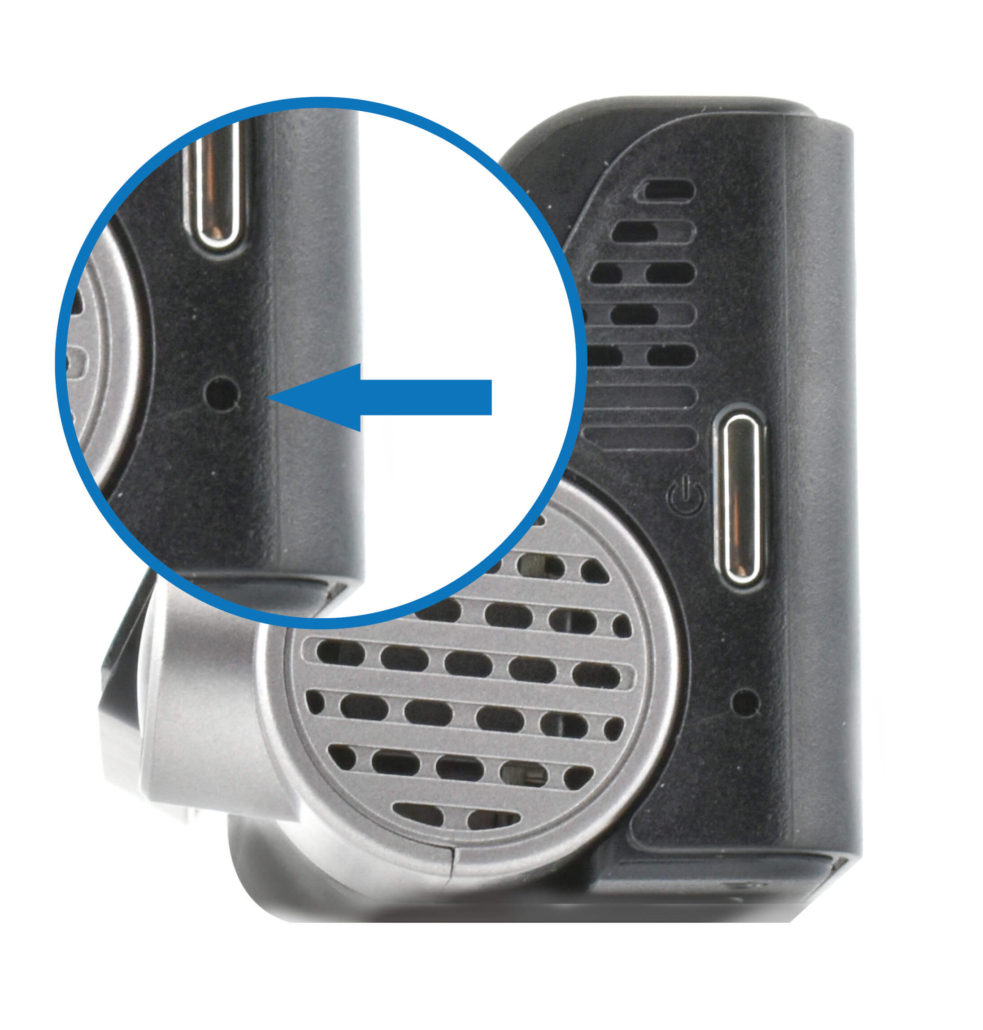
7. RESET
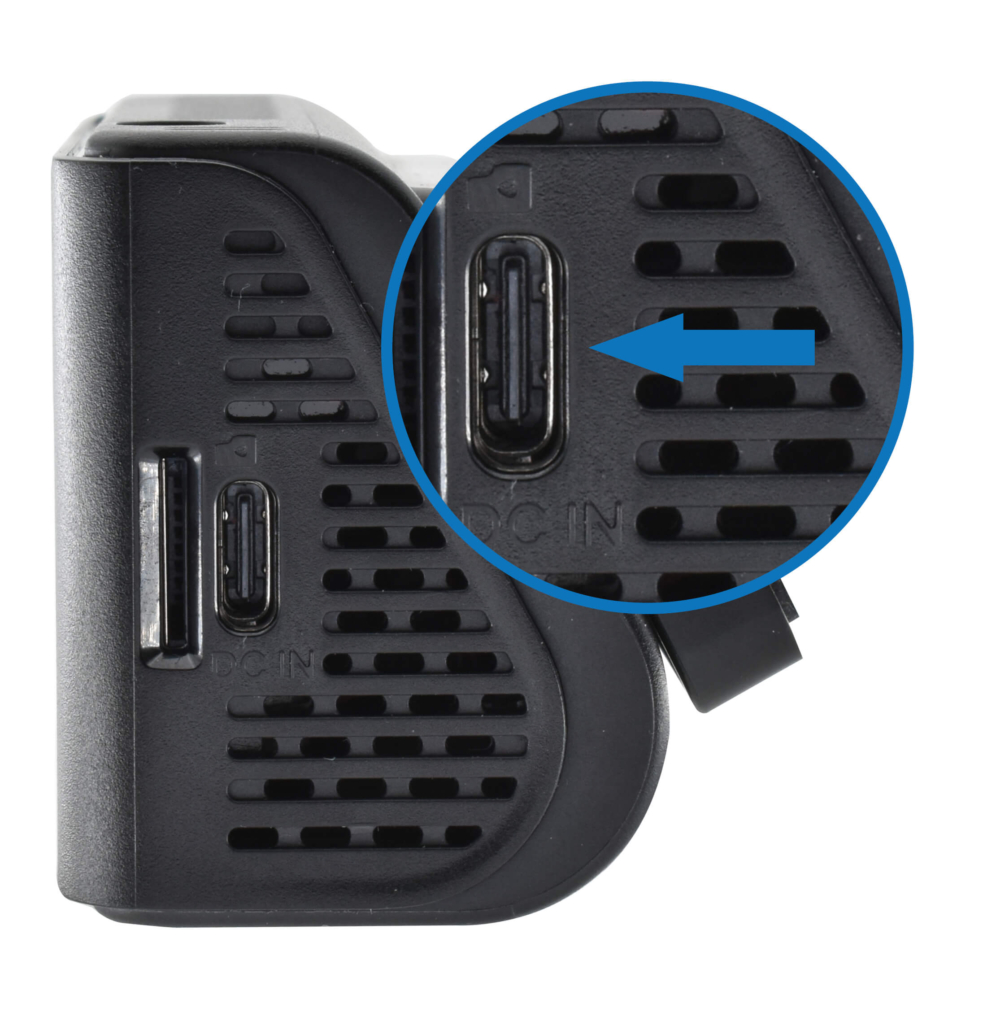
8. TYPE-C power supply port
9. MicroSD card slot
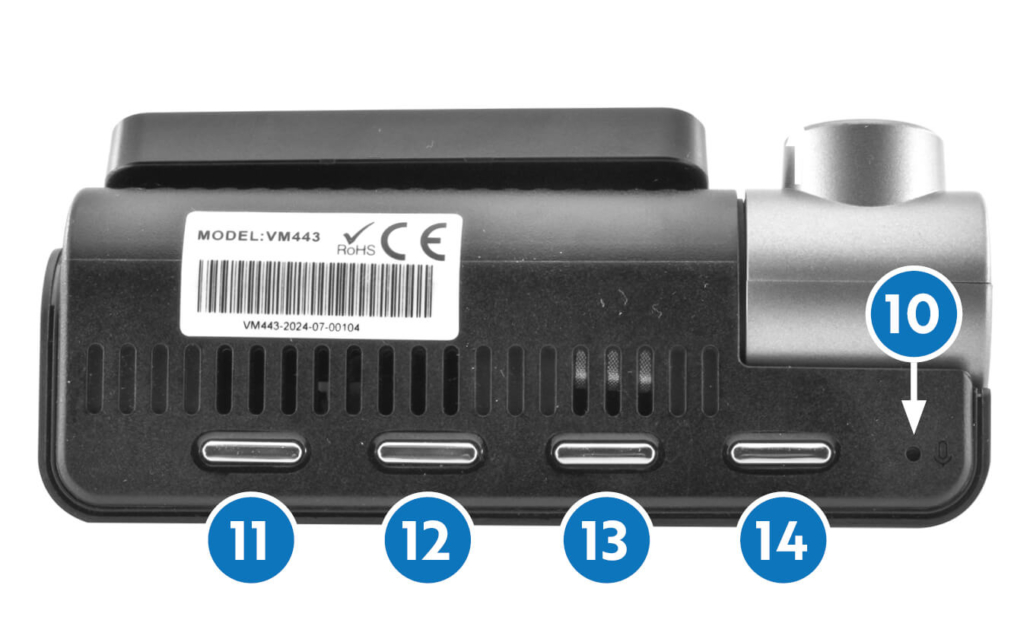
10. Microphone
11>14. MENU buttons

Insert the SD CARD

1. Insert the MicroSD card into the slot.
2. Connect the power adaptor to the dashcam using the TYPE-C port.
3. The dashcam turns on and requests to format the MicroSD.
4. Format the MicroSD card by pressing the corresponding button (see the display).

Power supply and RESET

TYPE-C POWER SUPPLY PORT
RESET BUTTON

POWERING ON and CONTROLS

ON

Press once

OFF

Press and hold for at least 3 seconds

Status LED and DVR

STANDARD RECORDING

The Digital Video Recording function is activated automatically when the vehicle is started and shuts off automatically when it is stopped. Recording is cyclic; the default video duration is 1 minute.

SAVING

VIDEO.

SETTINGS

– Recording cycle duration
– Microphone
– Speaker language and volume

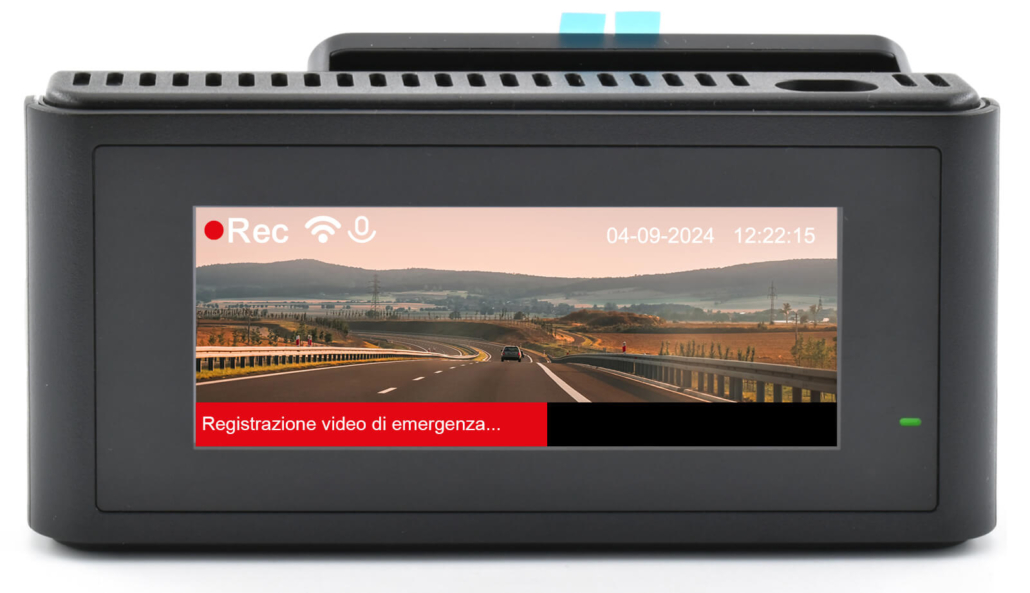
RECORDING EMERGENCY VIDEO

If an impact is detected by the G-Sensor during driving, recording will continue for 30 seconds.
Emergency videos are writeprotected and highlighted with an audio message on vehicle starting.

NOTE

Depending on the circumstances in which the impact occurs, the video may be saved in the “VIDEO” folder – check both folders.

SAVING

– EMERGENCY
– VIDEO.

SETTINGS

– G-Sensor sensitivity

PARKING MONITORING

In the event of impact detected by the G-Sensor while the vehicle is parked, a 1-minute video will be recorded.

NOTE

The video will be saved in the “VIDEO”folder if the impact was detected within 5 minutes of key-off, or in the “PARKING MODE”folder if the impact was detected more than 5 minutes from key-off: check both folders.

SAVING

– PARKING MODE
– VIDEO.

SETTINGS

– G-Sensor sensitivity

PARKING TIMELAPSE

Records 1 frame per second when the vehicle is parked.

SAVING

– PHOTO.

MOVEMENT DETECTION

Function which activates recording when it detects movement in front of the camera with the vehicle parked.
Recording continues for as long as the movement is detected.

SAVING

– PARKING MODE.
– VIDEO.

FAULT
– MICRO SD CARD FORMATTING

ADAS function

The Advanced Driver Assistant System (ADAS) function provides both audible and visual warnings to draw the driver’s attention in the case of potentially hazardous situations:
– Passing a lane boundary,
– Speed greater than the vehicle in front,
– Vehicle in front starting (pulling away).
WARNING
DESCRIPTION

SETTINGS

LANE CHANGE

Audible and visual warning if the lane boundary is passed.

ON/OFF

FRONT COLLISION

Audible warning if travelling at a speed higher than that of the vehicle in front such that a collision could occur.

ON/OFF

FRONT VEHICLE

Audible warning when the vehicle in front starts (pulls away) from a stationary position.

ON/OFF

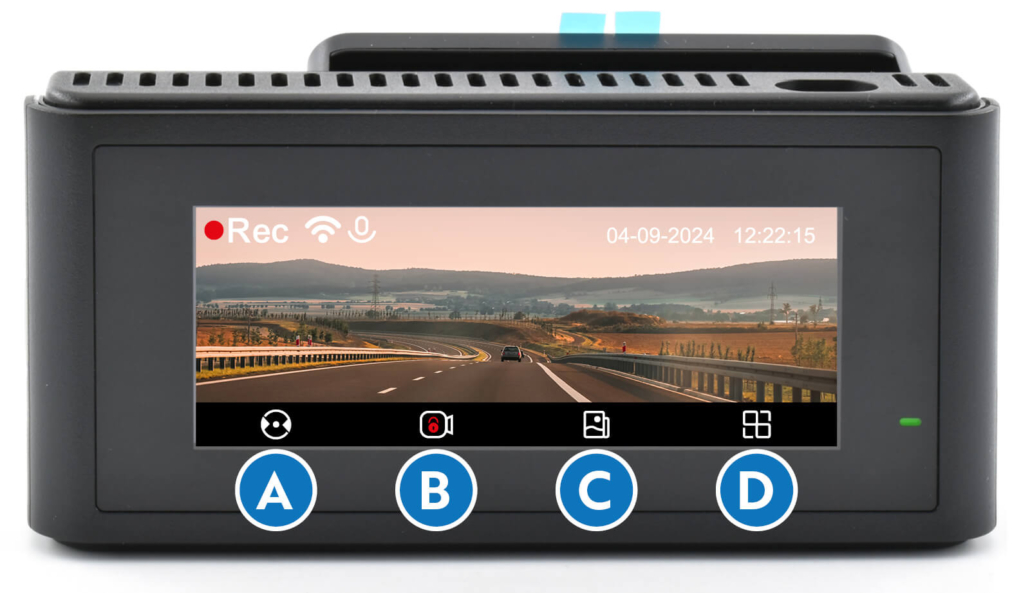
Display: FUNCTIONS

FUNZIONE DVR

Use the buttons at the bottom of the DASHCAM to navigate the menus.
A. Switch: DASHCAM rear-view camera (if installed)
B. Emergency video
C. Album
D. Settings

EMERGENCY VIDEO

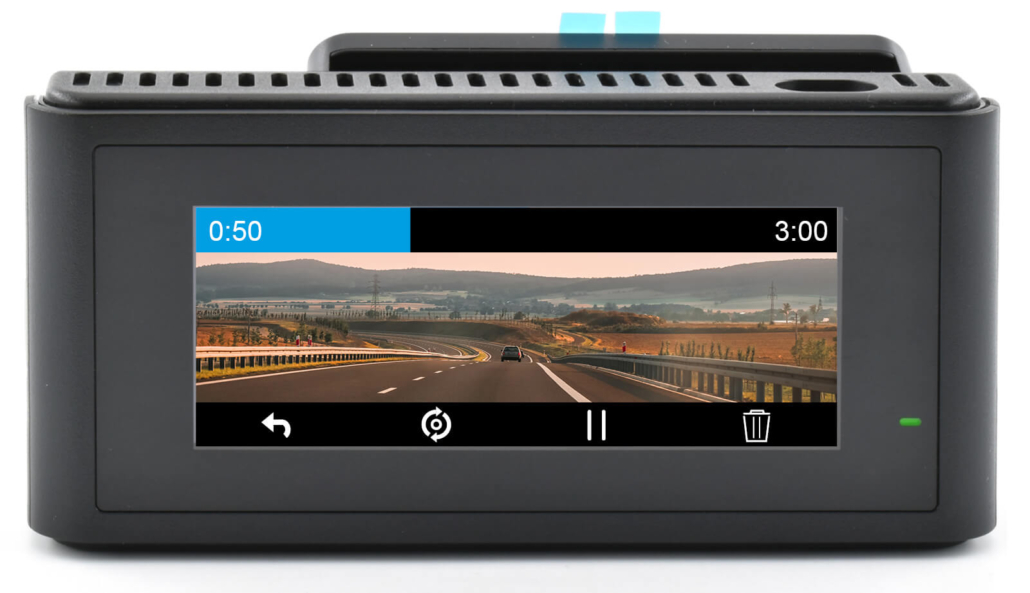
VIDEO PLAYBACK

Use the buttons at the bottom of the DASHCAM to navigate the menus.

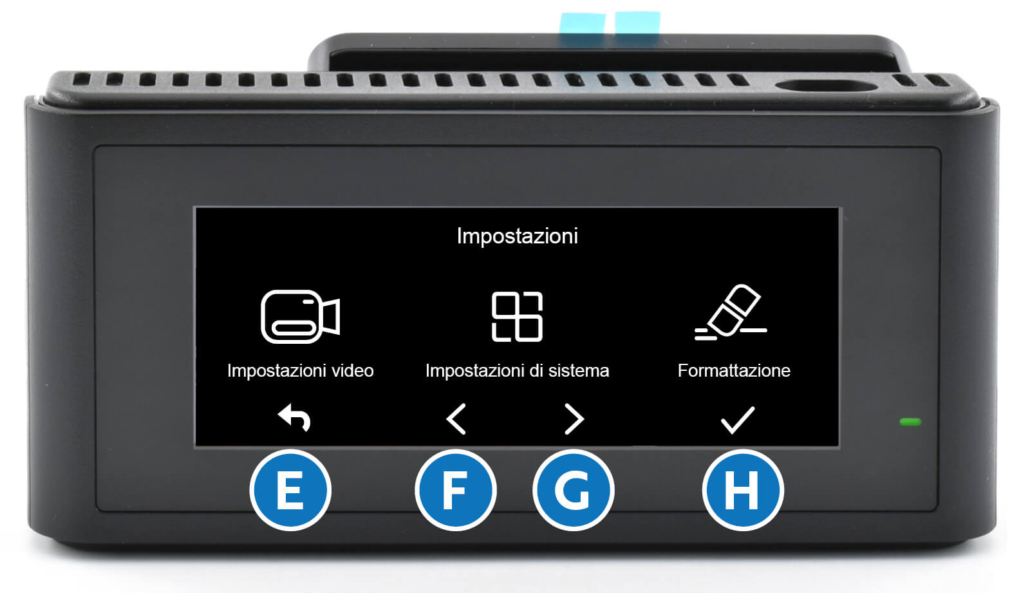
Display: SETTINGS

Use the buttons at the bottom of the DASHCAM to navigate the menus.
E. Back
F. Left
G. Right
H. Enter

VIDEO SETTINGS

  • Emergency Video: G-Sensor sensitivity.
  • Parking surveillance: ON/OFF.
  • Recording time: 1/3/5 minutes.
  • Video recording space: data compression, video resolution.
  • Audio recording: microphone ON/OFF.
  • Video update frequency.
  • Movement detection: ON/OFF.
  • Time lapse: ON/OFF.
  • Speed/Latitude: ON/OFF.

SYSTEM SETTINGS

  • WI-FI: ON/OFF.
  • WI-FI Settings Access: ON/OFF.
  • Lane Change Warning: ON/OFF.
  • Front Collision Warning: ON/OFF.
  • Front Vehicle Warning: ON/OFF.
  • Voice Commands: ON/OFF.
  • Screen shut-off time.
  • Speaker volume.
  • Automatic shut-off when parked.
  • System time.
  • Date format.
  • Speed unit of measurement.
  • System language.
FORMATTING
  • Formats the MicroSD card.

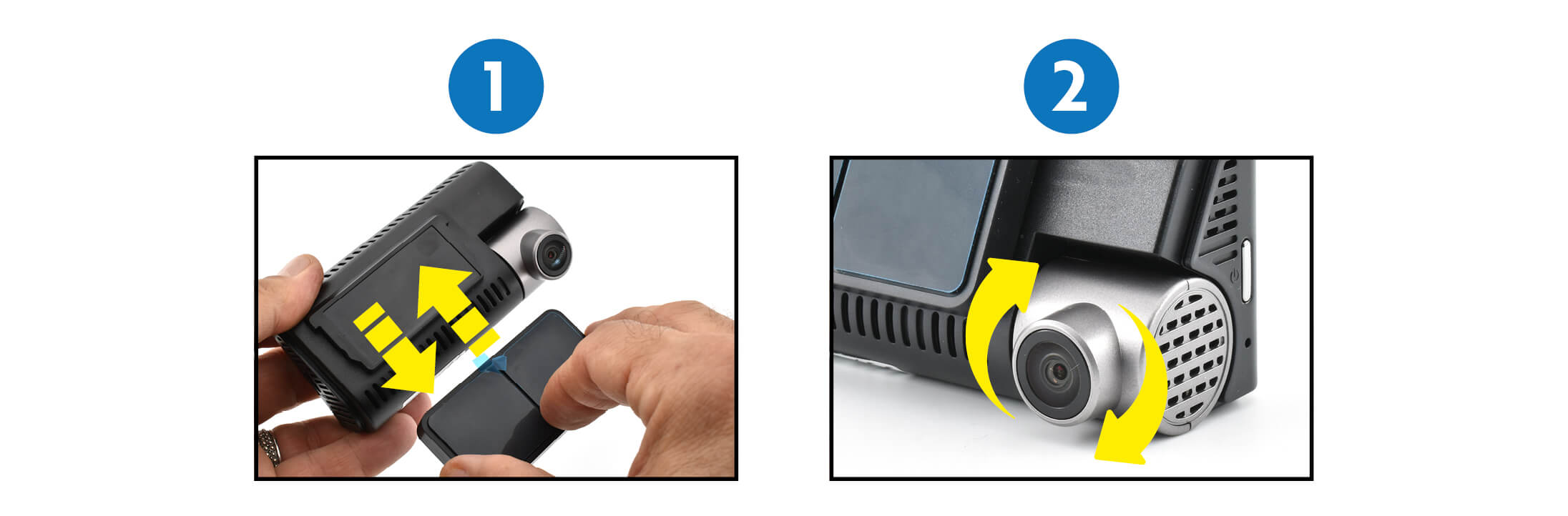
Mounting, release and adjustments

1. DASHCAM mount with quick release system
2. Adjustable camera lens

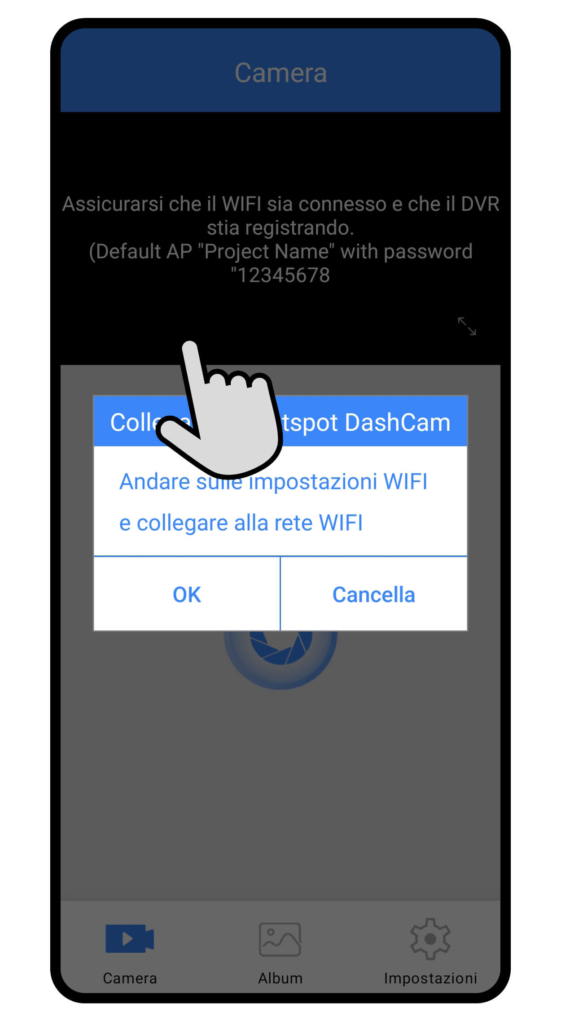
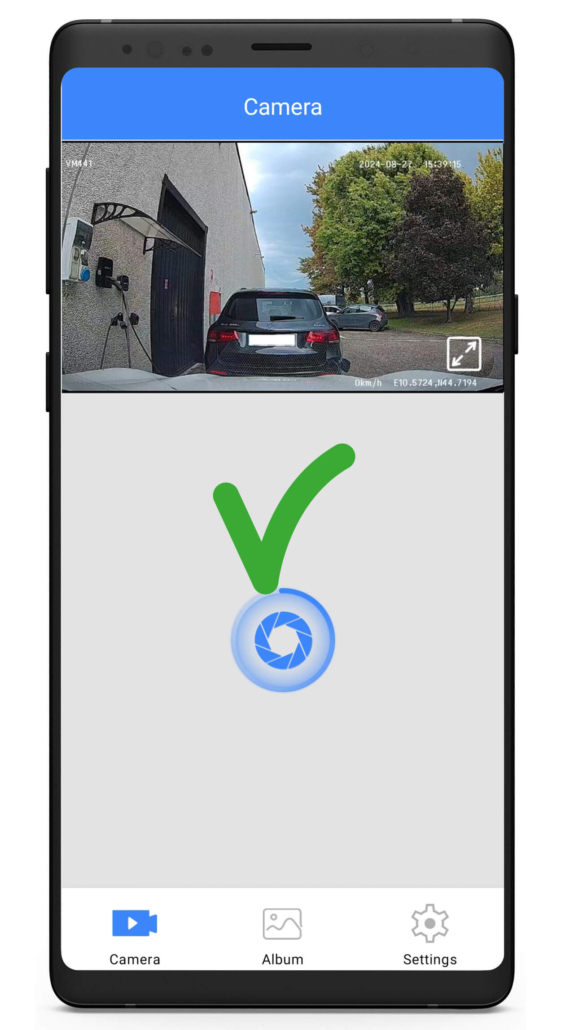
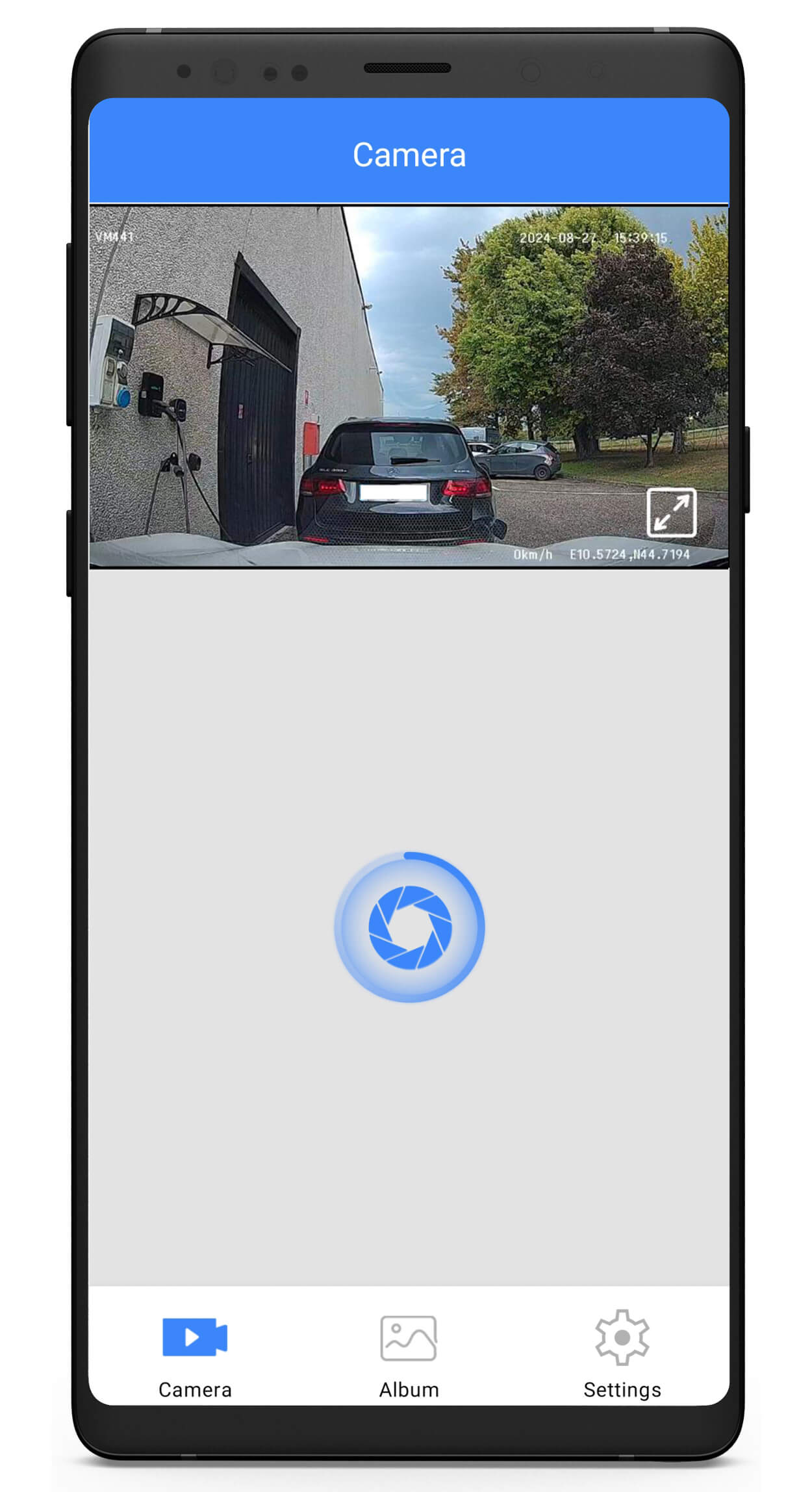
Connect the APP and position the camera

1. DOWNLOAD THE APP
2. OPEN THE APP AND ADD THE DASHCAM.
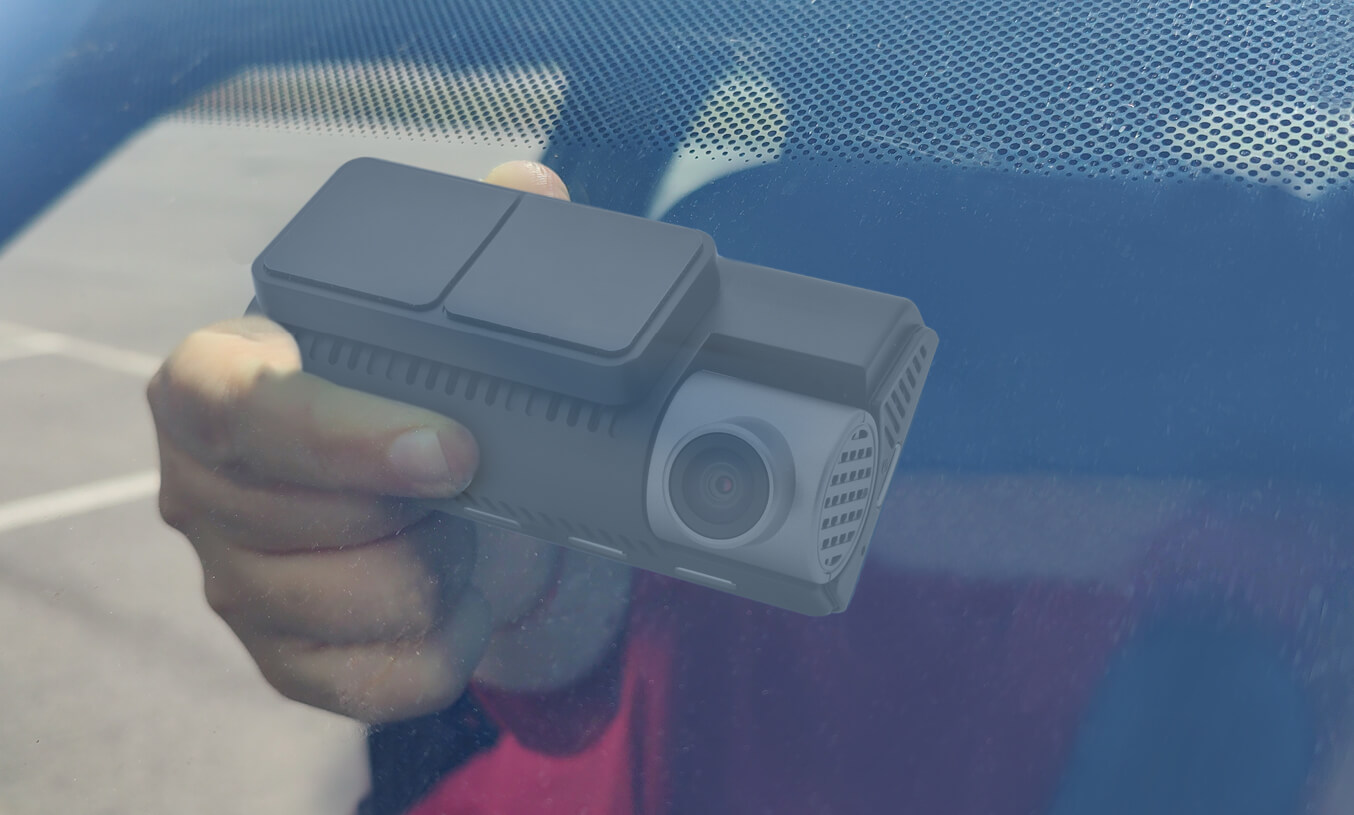
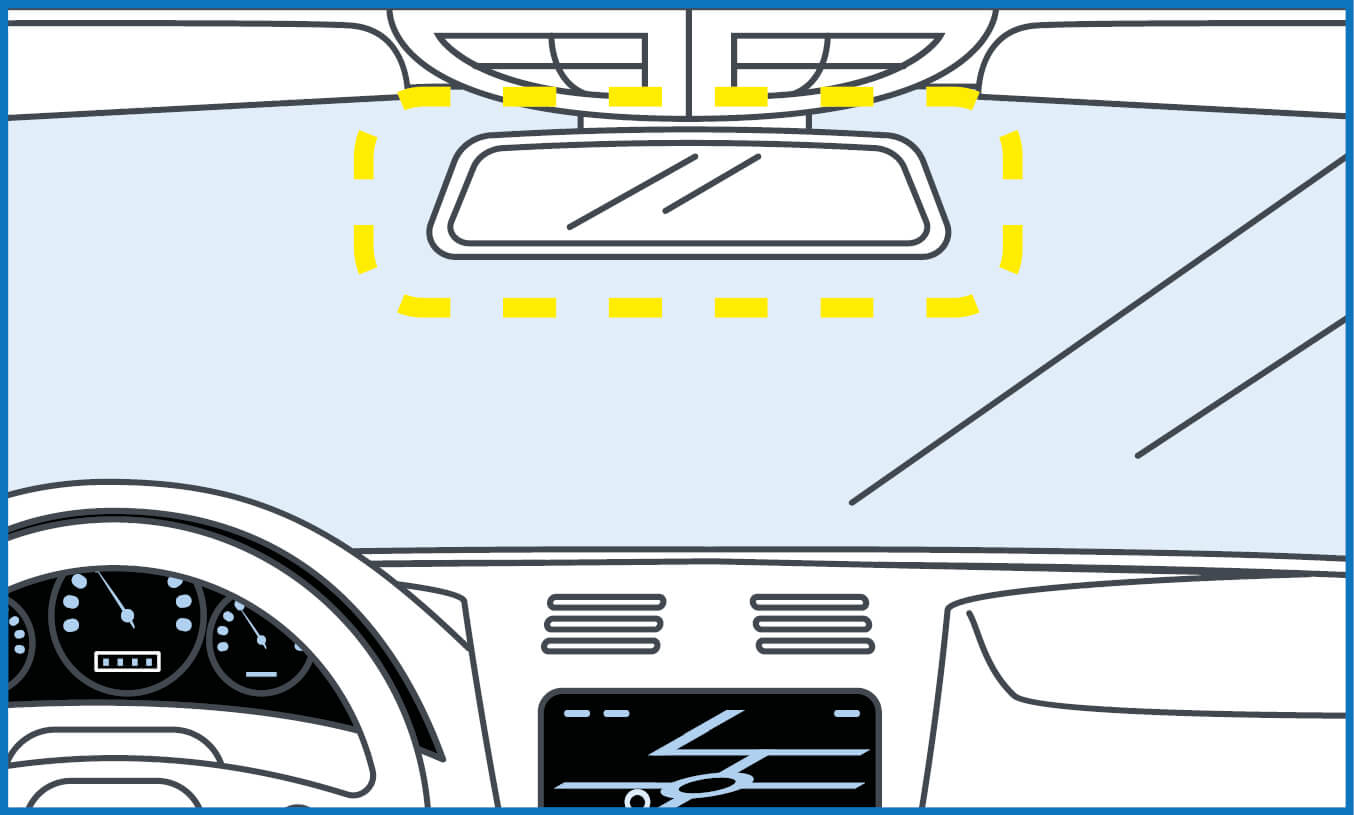
3. FIND THE MOST SUITABLE POSITION FOR THE INSTALLATION ON THE WINDSCREEN.

RECOMMENDED ZONE: behind the rear-view mirror.

4. CLEAN THE GLASS BEFORE ATTACHING THE DOUBLESIDED ADHESIVE.
5. ATTACH THE MOUNT WITH THE DOUBLE-SIDED ADHESIVE.

APP: functions

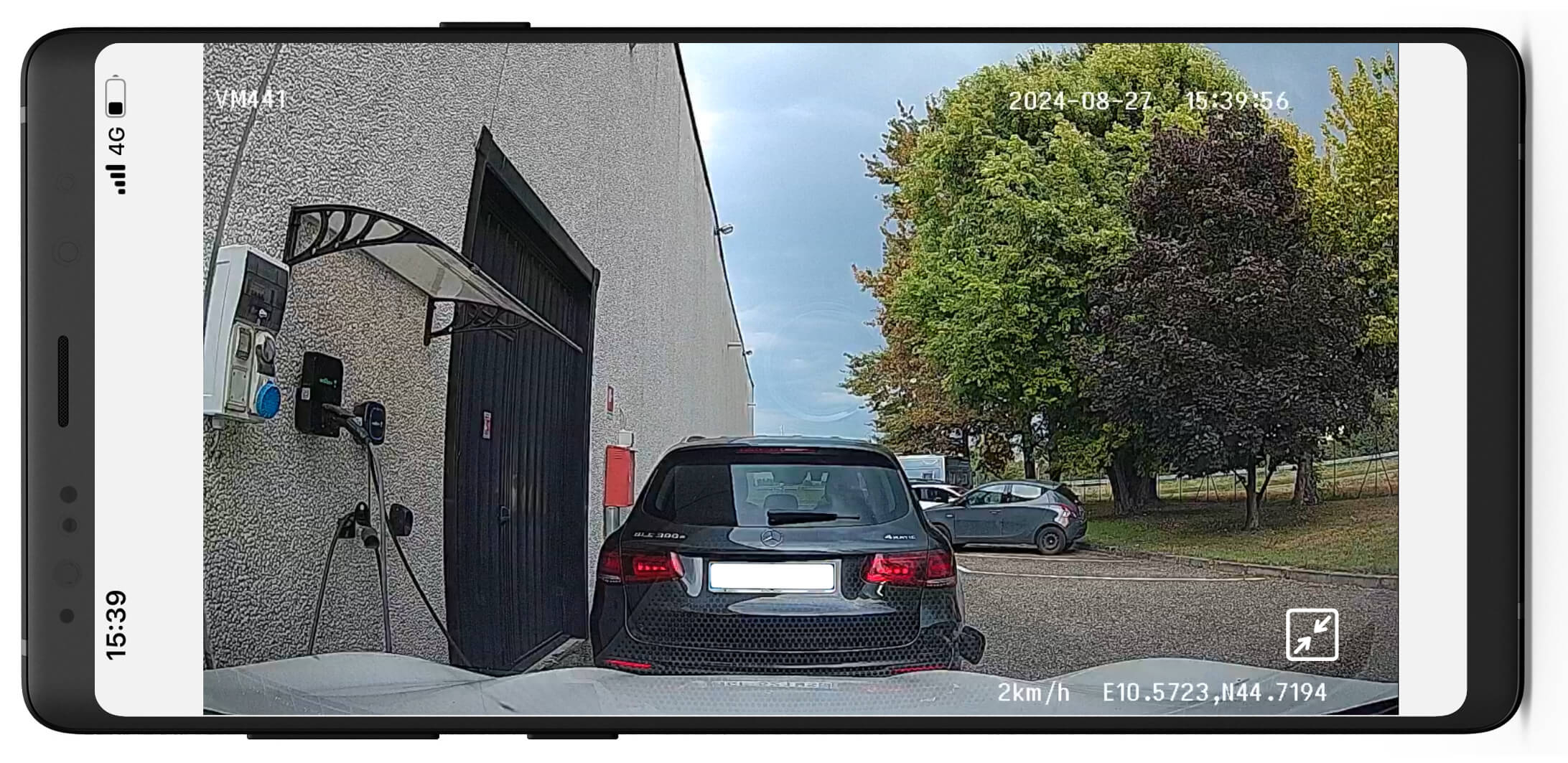
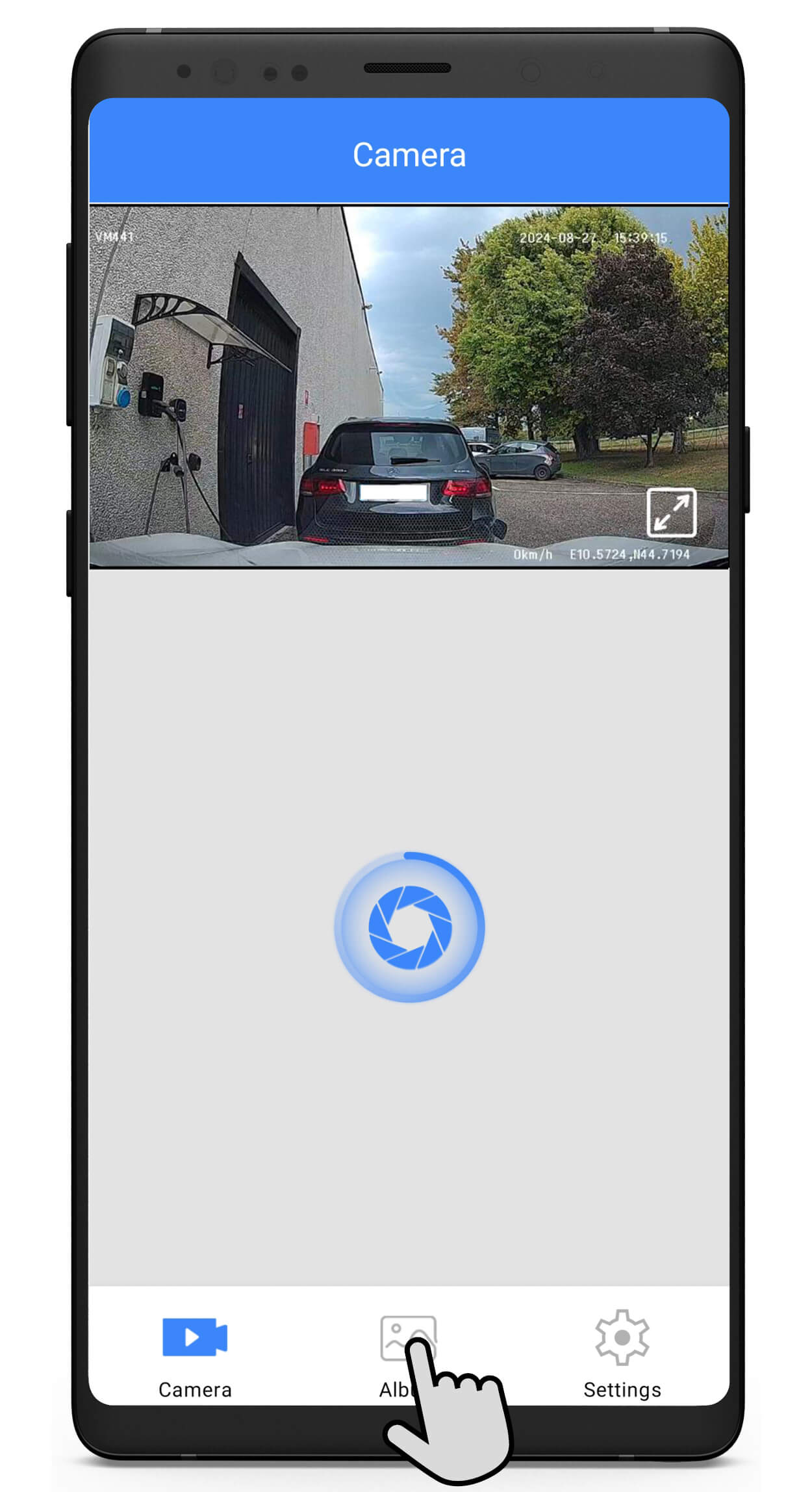
– VIEW FOOTAGE IN REAL TIME.
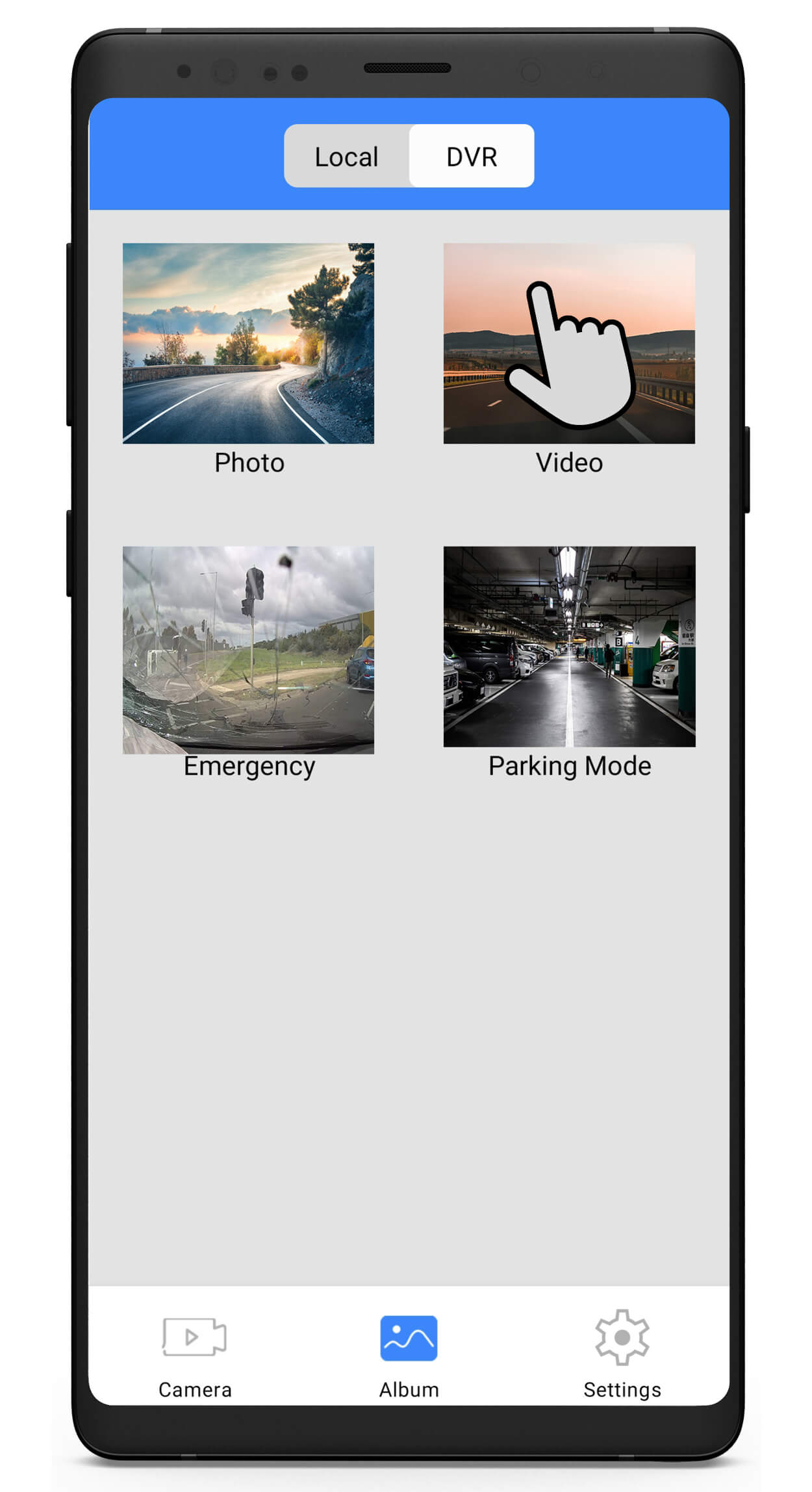
– CONSULT THE STORAGE FOLDERS TO SAVE, DELETE AND SHARE VIDEO AND IMAGES.
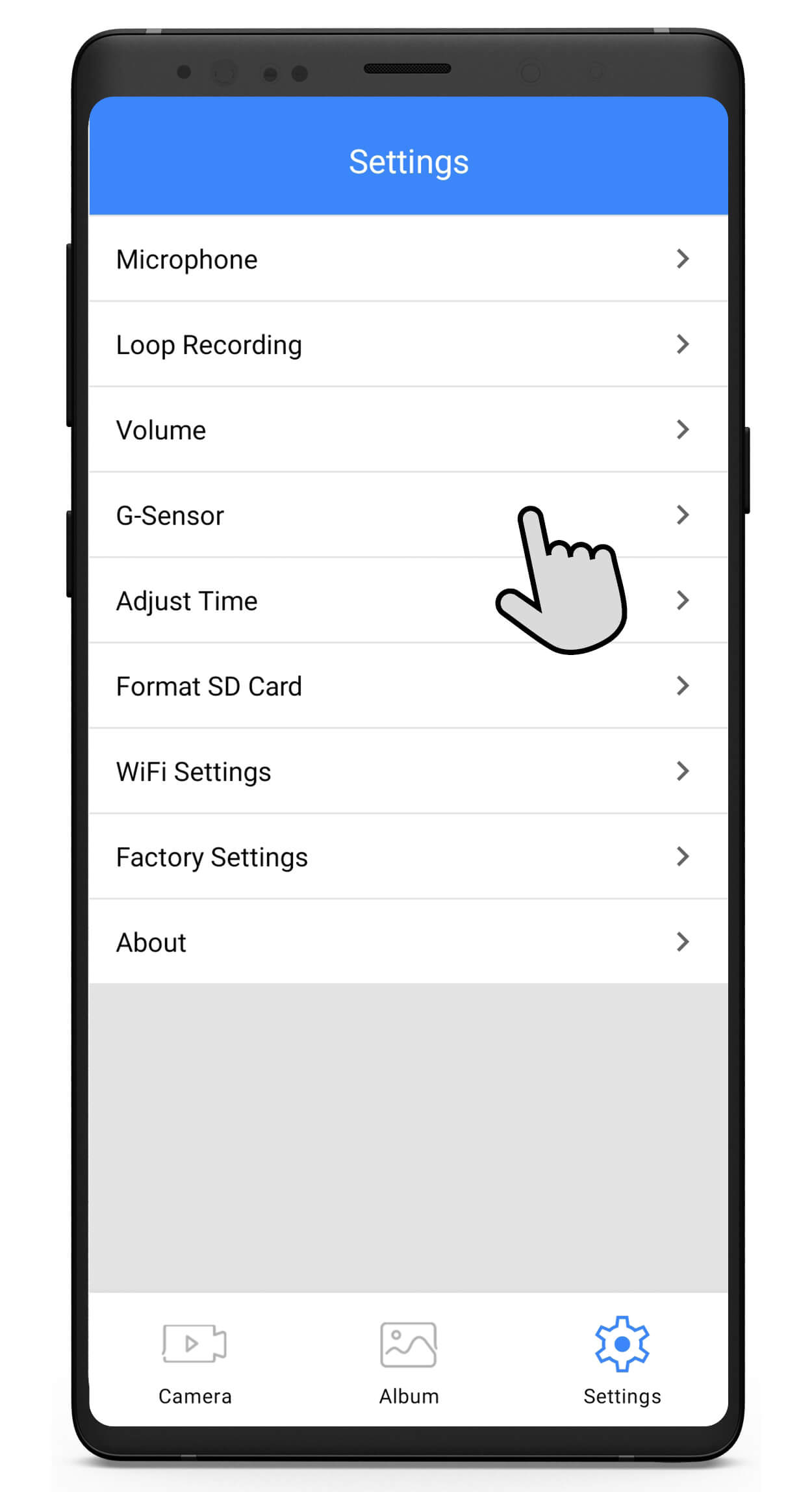
– ENABLE AND DISABLE THE FUNCTIONS, MODIFY SETTINGS.

BACK TO TOP